Tlauncher

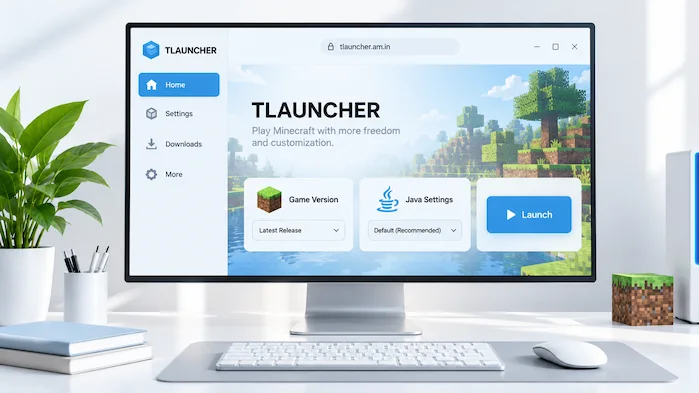
TLauncher is a Minecraft launcher that helps players manage their game setup from one place. It can help with game versions, Java settings, mods, skins, and multiplayer options.
Shaders • Maps • Servers • Game Versions • Mods • Skins
TLauncher is a Minecraft launcher that helps players manage their game setup from one place. It can help with game versions, Java settings, mods, skins, and multiplayer options. Players can choose a suitable Minecraft version and adjust settings before starting the game. The right setup depends on the Minecraft version, computer, Java environment, mods, and server. This guide explains how the launcher works, what features it offers, and how to avoid common setup problems.
What Is TLauncher?
TLauncher is a desktop launcher for Minecraft. A launcher helps prepare the game before Minecraft starts. It can provide options for choosing versions, managing game files, and changing some launch settings. The exact options can vary by platform and software version. Players should always check current software details before installing or changing their setup.
TLauncher as a Minecraft Launcher
TLauncher works as a separate program that helps prepare Minecraft for launch. Instead of changing every setting by hand, players can use the launcher interface to select a game version and manage related options. This can be useful for players who switch between different Minecraft versions or use custom game setups. Java and system requirements still matter, so users should check that their computer meets the needs of the selected version.
What Can You Do With TLauncher?
The launcher can help players choose Minecraft versions, adjust Java and memory settings, use supported mods, manage skins, and prepare the game for multiplayer. These options can make it easier to keep different setups organized. However, not every feature works in every Minecraft version. A mod, server, or skin may also have its own requirements.
TLauncher vs Minecraft
Minecraft is the game, while a launcher is the software used to start and manage the game. These are two different things. Minecraft provides the game itself, while the launcher can help select versions and settings before the game opens. Players should also understand that launcher features do not replace Minecraft’s own account, game, or server rules.
How Does TLauncher Work?
The launcher works by using your selected game settings to prepare a Minecraft session. You can choose a version, check Java settings, set memory limits, and select other supported options. The launcher then uses those choices when starting the game. A stable setup depends on matching the game version with Java, mods, and other required files.
Choosing a Minecraft Version
Minecraft has many versions, and each one can have different features and requirements. Older versions may support older mods, while newer versions may use different systems. Choose a version that matches the server, mod, or content you want to use. Using the wrong version can cause errors or prevent a server from accepting your connection.
Configuring a Game Installation
A game installation contains the files needed to run a selected Minecraft version. Players may use different setups for different versions or mod collections. Before changing an installation, check which version and files it needs. Keeping each setup clear can make troubleshooting easier when a problem appears.
Java and Runtime Settings
Java is important for many Minecraft desktop versions. The correct Java setup depends on the Minecraft release and the launcher environment. If the wrong Java version is used, the game may fail to start or show an error. Check the Java requirements for your selected Minecraft version before changing runtime settings.
Launching Minecraft
After you select the needed version and settings, you can start the game from the launcher. The first launch may take longer while files are prepared. If the game does not open, check the selected version, Java setup, memory limit, and error message. These checks can help find the cause without changing many settings at once.
Managing Mods and Customizations
Mods can change how Minecraft looks or works. Some add new items, while others change game systems or performance. Custom content must match the Minecraft version and mod loader. Installing a mod made for another version can cause crashes, missing items, or launch errors.
TLauncher Features
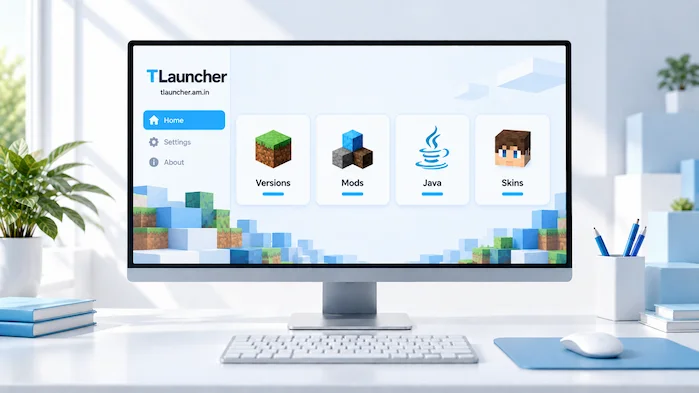
The launcher offers several tools that can help players manage a Minecraft setup. These tools can include version selection, Java controls, memory settings, mod support, skins, and multiplayer options. The available features can depend on the software version and the Minecraft setup. Players should check each option before making major changes.
Minecraft Version Selection
Version selection lets players choose the Minecraft release they want to use. This is useful when a mod or server requires a specific release. Older game versions can also be useful for older worlds or mods. Always check the version required by the content before launching it.
Mods and Modpacks
Mods add or change game features. A modpack can contain several mods that work together. Each mod or pack may require a certain Minecraft version and loader. Check those details before installation. If one file does not match the rest of the setup, Minecraft may crash or fail to start.
Forge, Fabric, and OptiFine
Forge and Fabric are mod loaders used by many Minecraft mods. A mod made for Forge may not work with Fabric, and the reverse can also be true. OptiFine is another well-known Minecraft modification that can affect graphics and performance. Before installing any of these tools, check the Minecraft version and compatibility details.
TLauncher Skin System
Skins change the look of a Minecraft character. A skin does not change the game itself, but it can change how your character appears. Skin support can depend on the account and launcher setup you use. If a skin does not appear, check the account, skin settings, and game version.
Java and Memory Settings
Java settings can affect how Minecraft starts and runs. Memory settings control how much system memory the game can use. Giving the game too little memory may cause problems with large worlds or modpacks. Giving it too much can also leave fewer resources for Windows and other programs. Use a reasonable amount based on your computer.
Multiplayer Support
Minecraft multiplayer depends on the server and game version you use. The launcher can prepare the game, but the server controls its own rules and requirements. Before joining a server, check its address, port, Minecraft version, and mod requirements. This can prevent many connection errors.
Launcher Configuration
Launcher settings can affect game files, Java, memory, and other parts of the setup. Change one setting at a time when troubleshooting. This makes it easier to see which change fixed or caused a problem. Keep a note of working settings if you use several Minecraft versions.
TLauncher Minecraft Versions
Different Minecraft versions can use different features, files, Java releases, and mod systems. Choosing the right version is one of the most important parts of a stable setup. Players should select a version based on the server, mods, world, or features they want to use.
Older Minecraft Versions
Older Minecraft versions remain useful for players who want older features, worlds, or mods. Some mods only support certain releases. Older versions may also need different Java settings. Before using an old version, check its software and mod requirements.
Minecraft Snapshots
Snapshots are test versions that can show upcoming Minecraft features. They may change more often than stable releases. Mods and servers may not support them. Players who use snapshots should expect possible bugs or compatibility problems.
Version Compatibility
Compatibility means that the parts of your setup can work together. Your Minecraft version should match the needs of your mods and server. Java must also support the selected game version. If these parts do not match, you may see crashes, missing content, or connection errors.
Why Minecraft Version Matters
The game version affects many parts of Minecraft. It can change the way mods work, which Java version you need, and which servers you can join. Before installing anything, check the required version. This simple step can save time and reduce errors.
TLauncher for PC and Windows
A desktop launcher is designed for computer use. Windows users should check their operating system, Java setup, available storage, RAM, and graphics support before starting Minecraft. Performance can also change based on the Minecraft version, world size, mods, and other programs running on the computer.
TLauncher for PC
A PC setup gives players access to desktop Minecraft features and settings. The exact performance depends on the hardware. A newer computer may handle larger worlds and modpacks with fewer issues. Older hardware may need lower graphics settings and a smaller memory limit.
TLauncher for Windows
Windows users should keep their operating system and security software updated. They should also check that Java and Minecraft meet the required system conditions. If the launcher will not open, restart the computer and check for blocked files, Java errors, or installation problems.
TLauncher System Requirements
Minecraft performance depends on several parts of a PC. RAM, processor speed, graphics hardware, storage, and operating system support can all matter. Modded Minecraft may need more resources than a basic game setup. Check the requirements for your chosen Minecraft version instead of relying on one general requirement.
TLauncher on macOS
Mac users should check their macOS version and Java setup before installation. Hardware limits can vary between Mac models, so performance may differ from one device to another. If the game does not start, check the Java version, system permissions, and Minecraft version first.
TLauncher Download and Installation
A safe installation starts with a reliable software source. Before opening an installer, check the file name and source. Avoid modified installers from unknown sites. During installation, read each screen and avoid adding software that you did not request.
TLauncher Download
Before you download the launcher, check that you are using the correct version for your computer. A desktop installer should match your operating system. Do not open files from random links or unknown sources. A trusted source can reduce the risk of unwanted software.
When you are ready to get the launcher, follow our TLauncher Download guide for PC installation steps and basic safety checks.
TLauncher Installer
An installer places the required program files on your computer. Close unnecessary programs before starting the process. Read each installation step and review any optional settings. If your security software warns about a file, stop and check the source before continuing.
How to Install TLauncher
First, obtain the correct installer from a source you trust. Open the installer and follow the setup steps shown on screen. Choose the needed installation options and wait for the process to finish. After installation, open the launcher and check the Minecraft version and Java settings before starting the game.
TLauncher Installation Requirements
Installation needs enough storage and a supported operating system. Minecraft also needs suitable hardware and a compatible Java environment. Modpacks can need extra storage and RAM. Check these requirements before installation, especially if you plan to use large mod collections.
Download and Installation Safety
Software safety starts with the source you use. Check the website address before downloading a file. Scan unfamiliar files with trusted security tools. Avoid installers that ask for unrelated software or unusual permissions. You should also keep your operating system and security tools updated.
TLauncher Java
Java plays an important role in desktop Minecraft. Different Minecraft versions may need different Java releases. A Java problem can cause the game to close, fail to start, or show an error. Check the Java requirement for your selected version before changing the runtime.
Why Does TLauncher Need Java?
Many desktop Minecraft versions use Java to run the game. The launcher uses the Java environment to start Minecraft. If Java is missing, outdated, or incompatible, the game may not launch. The required Java release depends on the Minecraft version.
Java Compatibility
Java compatibility can change between Minecraft releases. A Java version that works for one release may not work for another. Check the game requirements before selecting a Java version. This is especially important when using older Minecraft releases.
Java and Minecraft Versions
Minecraft versions can have different Java needs. Newer releases may require a newer Java environment, while older releases can use an older one. If you switch between versions often, make sure each setup uses a suitable runtime.
Java and Mods
Mods can also have Java requirements. A modpack may use more memory and system resources than the base game. If a modded setup crashes, check the Minecraft version, mod loader, Java version, and installed mods together.
Java and Memory Settings
Memory controls how much RAM Minecraft can use. A small amount may not be enough for large modpacks. A very high amount can reduce the memory available to other programs. Set a reasonable limit based on your computer and the needs of your game.
Common Java Problems
Common Java issues include the wrong version, missing Java files, and incorrect runtime settings. The game may also show an error when Java cannot access a required file. Check the error message first. Then confirm the Minecraft version and Java setup before making changes.
TLauncher Mods and Modpacks
Mods can add new features, items, blocks, graphics, or game systems. Modpacks combine several mods into one setup. They can make Minecraft more complex and may need more RAM and storage. Always check compatibility before installing custom content.
TLauncher Mods
A Minecraft mod must match the game version and its required loader. Some mods use Forge, while others use Fabric. Installing a mod without its required loader can cause an error. Read the mod requirements before placing the file in your game folder.
How TLauncher Mods Work
The launcher starts Minecraft with the selected files and settings. A mod loader then loads compatible mods during the game startup. If one mod is broken or uses the wrong version, Minecraft may stop during launch. Remove recent changes first when testing a mod problem.
TLauncher Modpack System
A modpack can contain many files that work as one collection. Modpacks often have their own Minecraft version and loader requirements. They can also need more RAM than a normal game. Check the pack requirements before starting it on a low-memory PC.
TLauncher Mods Folder Location
Minecraft stores mods in a specific game folder. The exact location can depend on your operating system and game setup. Use the folder linked to the Minecraft installation you are running. Putting a mod in the wrong folder can make it appear as if the mod does not work.
Forge Mods
Forge mods need a compatible Forge setup. The Forge version should match the Minecraft release and the mod requirements. If several Forge mods are installed, check that they support the same game version. One incompatible file can stop the whole setup from loading.
Fabric Mods
Fabric uses its own loader and mod system. Compatibility with the Minecraft version you are running is required for Fabric mods. Some also need extra libraries. Check the mod page for every required file before launching the game.
OptiFine
OptiFine can change graphics options and may help some systems improve game performance. Its compatibility depends on the Minecraft version and other installed modifications. Check the version before adding it to a modded setup.
Minecraft Version and Mod Compatibility
A mod made for one Minecraft release may not work on another release. Even small version changes can affect how mods load. Always compare the mod version with your Minecraft version. This is one of the first checks to make after a mod crash.
Common Mod Problems
Common problems include crashes, missing libraries, wrong loaders, and incompatible versions. Start by removing the newest mod or change you made. If the game works again, check that file’s requirements. Add changes one at a time to find conflicts.
TLauncher Skins
Minecraft skins let players change the look of their character. The process can depend on the account and setup being used. A skin may also fail to appear because of account settings, server limits, or version issues. Check each part before replacing the skin file.
How the TLauncher Skin System Works
The skin system connects the selected character appearance with the game setup. What other players see can depend on the account and server. If the skin does not appear, check whether your current account and multiplayer setup support the selected skin.
How to Use a Skin in TLauncher
Choose a compatible skin and apply it through the available skin settings. Save the change and restart the game if needed. If the new appearance does not show, check the account and connection settings. Some servers may also use their own skin rules.
Changing a Minecraft Skin
A skin can be changed without changing the Minecraft world itself. Select a new skin, apply it, and then check the game. If the old skin remains, restart the launcher or game and confirm that the new skin was saved correctly.
Why Is My Skin Not Showing in Minecraft TLauncher?
A missing skin can have several causes. The account may not support the selected skin system, or the server may use different settings. A connection problem can also prevent the new appearance from loading. Check your account, skin settings, and server before changing other files.
Common TLauncher Skin Problems
Common skin issues include an old skin showing, a default character appearing, or a skin not loading in multiplayer. Check the selected skin first. Then restart the game and test the same skin again. If the problem only happens on one server, check that server’s rules.
Skin and Account Requirements
Skin features can depend on the account and service being used. Licensed accounts and other account types may have different options. Check the current account rules before expecting a skin to appear on every server.
TLauncher Login and Accounts
Account access is separate from the launcher itself. Players should understand which account they are using before entering login details. Never share your password with another person or enter it on an unknown website. Use the official account service when account verification is required.
TLauncher Login
Login problems can come from incorrect details, network issues, or account settings. Check your email or username and password first. If the details are correct, check your internet connection and account service status. Avoid entering account information into unofficial pages.
TLauncher Accounts
An account can control access to Minecraft features and services. The type of account you use can affect multiplayer, skins, and other features. Check the current account requirements before assuming that every feature will work in the same way.
Licensed Minecraft Accounts
A licensed Minecraft account gives access to the Minecraft services included with the purchased game. Account ownership and launcher software are separate matters. Use your own account details and follow the current rules from the game provider.
Minecraft Account and Launcher Access
The launcher prepares the game, while account services control account access. A launcher problem does not always mean your account has a problem. Test the account through the proper service when needed. This can help you tell an account issue from a local launcher issue.
Common TLauncher Login Problems
Login problems may result from wrong details, network errors, service problems, or incorrect account settings. Check one cause at a time. Do not repeatedly enter your password on unknown websites while trying to fix the issue.
Account Security
Use a strong password and keep it private. Do not share login codes with anyone. Avoid links that ask for your account details without a clear reason. If you think your account may be at risk, change the password through the proper account service.
TLauncher Servers and Multiplayer
Minecraft servers let players join shared online worlds. Each server can use its own rules, game modes, versions, and connection settings. Before joining, check the server address, port, Minecraft version, and any required mods. A mismatch in one of these areas can stop the connection.
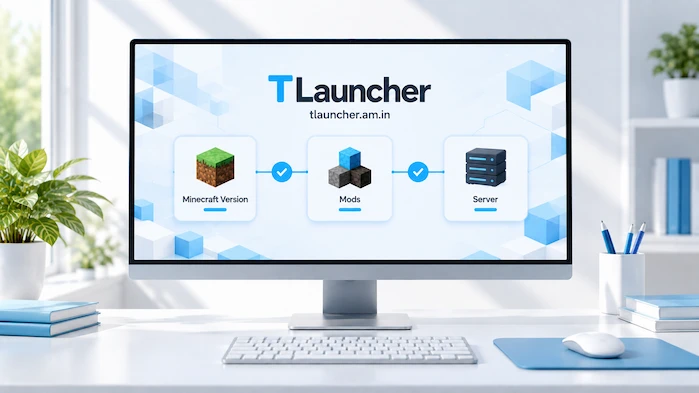
For server addresses, SMP, BedWars, version compatibility, and connection problems, see our TLauncher Servers guide.
Minecraft Servers for TLauncher
A server must support the Minecraft setup you are using. Some servers allow only certain versions, while others support several releases. Check the server information before connecting. The launcher can start the correct game version, but the server still controls access.
How Server Compatibility Works
Server compatibility depends on several factors. The Minecraft version is one of the most important. Mods, loaders, account rules, and server settings can also matter. If you cannot connect, compare your setup with the server’s current requirements.
TLauncher Server Address and IP
A server address tells Minecraft where to connect. It can use a domain name or an IP address. Some servers also need a separate port. Enter the details exactly as provided by the server owner. One wrong character can cause a connection failure.
TLauncher SMP Servers
SMP means Survival Multiplayer. These servers let players share a survival world with other players. Each SMP server can have different rules, plugins, maps, and versions. Read the server details before joining and make sure your Minecraft version matches.
TLauncher BedWars Servers
BedWars is a team-based Minecraft game mode where players protect their bed while attacking other teams. Server support varies by version and account type. Before joining a BedWars server, check its current address, version, and access rules.
Minecraft Version and Server Compatibility
A server may support only one Minecraft release or a limited range of versions. If your game uses the wrong version, the server may reject the connection. Select the version listed by the server before trying again.
Mods and Server Compatibility
Some servers allow mods, while others require a clean game setup. A server may also require a specific mod loader. Check the server rules before adding mods. Extra files can cause a connection error if the server does not support them.
Cracked Minecraft Servers for TLauncher
Some servers may allow players without a standard online authentication setup, while others require account verification. Server rules can change at any time. Check the server’s own requirements before attempting to connect, and avoid servers that ask for unsafe account details.
Common TLauncher Server Problems
Connection problems can come from the wrong address, version, port, mods, network, or server status. Check the server information first. Then compare it with your Minecraft setup. If other players also cannot connect, the issue may be on the server side.
TLauncher for Android and Mobile
Desktop Minecraft and mobile Minecraft use different platforms. A desktop launcher should not be treated as the same thing as a mobile Minecraft app. Mobile users should check current product information before installing any software. Avoid unofficial apps that claim to offer features without a clear source.
TLauncher for Android
Android uses a different environment from Windows and macOS. Desktop software cannot always run on Android. If you want to play Minecraft on a phone or tablet, check the current mobile version and its official requirements instead of assuming that a desktop launcher will work.
TLauncher Mobile
Mobile Minecraft has its own controls, files, and system requirements. The experience can differ from desktop Minecraft in many ways. Check whether the software you want is designed for your Android device before installing it.
TLauncher Java for Android
Java-based desktop Minecraft and mobile Minecraft use different environments. An Android device cannot always run desktop Java software in the same way as a PC. Check the current support information for your device and the Minecraft version you want to use.
Mobile Compatibility
Mobile compatibility depends on the Android version, device hardware, available storage, and the software being installed. Older phones may have more limits than newer devices. Check these details before installing a game or launcher.
Desktop TLauncher vs Mobile Minecraft Launchers
Desktop and mobile launchers serve different environments. A PC setup may use Java and desktop files, while mobile Minecraft uses a different system. The controls, file locations, mod support, and installation process can also differ. Use software made for your target platform.
Mobile Installation and Security Considerations
Install mobile software from a source you trust. Review permissions before installing an app. Avoid modified packages from unknown websites. If an app asks for access that does not match its purpose, stop and review the source before continuing.
Is TLauncher Safe?
Software safety depends on the source, file, installation process, and user actions. A launcher should be downloaded from a source you trust. Users should also scan unfamiliar files, keep security tools active, and avoid modified installers. Do not treat a security claim as proof without checking the source.
Is TLauncher Safe to Use?
Users should check the current software source and security information before installation. Downloading from an unknown site adds risk because the file may have been changed. Keep your operating system and security software updated. Also review the installer before allowing it to run.
Is TLauncher a Virus?
A launcher and a virus are different types of software. A security warning can have different causes, including file reputation, false positives, or a modified download. If a file is flagged, do not ignore the warning. Check the file source and scan it with trusted security tools.
Does TLauncher Have a Virus?
Do not assume that every copy of a launcher is identical. Files from third-party sites can differ from files provided by the original source. If you receive a warning, check the exact file and source. Avoid modified installers and unknown download pages.
Malware and Spyware Concerns
Malware can include software that steals data, changes system settings, or performs unwanted actions. Spyware can collect information without clear user consent. The best way to reduce risk is to use trusted sources, scan files, and review what an installer wants to change.
TLauncher Security and Privacy
Protect your account details and personal information when using any launcher. Avoid entering passwords into pages you do not trust. Check software permissions and keep your system updated. Good security habits reduce risks from many types of software.
Is TLauncher Safe for PC?
PC users should check the source of the installer and scan the downloaded file before opening it. Windows security tools can also warn about suspicious files. Do not disable security protection just to install a file. Investigate the warning first.
Is TLauncher Safe for Mac?
Mac users should use a trusted source and review system warnings before opening an installer. Check the macOS version and software requirements as well. If macOS blocks a file, confirm its source before changing any security settings.
Download and Installation Security
The safest approach is to verify the source before downloading. Check the website address and file details. Do not use modified installers when you can avoid them. After downloading, scan the file and keep your operating system protected.
How to Reduce Security Risks
Use trusted sources, strong account passwords, updated security tools, and current operating system updates. Avoid unknown installers and suspicious links. Never share account credentials with a website or person that you do not trust. These basic steps can reduce common software risks.
TLauncher Alternatives
Players have several Minecraft launcher options. Each launcher can use a different design, feature set, mod system, and account setup. The right option depends on the features you need and the Minecraft setup you want to manage.
Official Minecraft Launcher
The official Minecraft launcher is designed to provide access to Minecraft through the game’s official services. It can manage supported game versions and account access. Players who want the official game environment can review its current features and requirements.
Prism Launcher
Prism Launcher focuses on managing separate Minecraft instances. This can be useful for players who use different mod setups or game versions. Its approach is based on keeping instances separate, which can make custom setups easier to organize.
MultiMC
MultiMC is another launcher built around separate Minecraft instances. Players can create different profiles for different game setups. Its instance-based design can help users keep mods and versions apart.
Lunar Client
Lunar Client is a Minecraft client with its own collection of features and settings. It is aimed at players who want a more focused client experience. Its features and supported versions can change, so check current information before choosing it.
GDLauncher
GDLauncher provides tools for managing Minecraft instances and modpacks. It can be useful for players who want to organize several custom setups. Check its current supported versions and features before moving an existing Minecraft setup.
Comparing Minecraft Launchers
When comparing launchers, look at version support, mod management, account options, system requirements, and ease of use. Security and software source also matter. Instead of choosing based on one feature, check which launcher matches your own Minecraft setup.
TLauncher Troubleshooting
Many launcher problems come from a small number of causes. Wrong Minecraft versions, Java problems, missing files, mod conflicts, and network issues are common examples. Start with the error message and the most recent change you made. Avoid changing several settings at the same time.
TLauncher Won’t Open
If the launcher does not open, restart your computer first. Then check security software, Java, installation files, and system requirements. If the problem started after an update or file change, review that change before trying more fixes.
TLauncher Download Problems
A failed download can come from a weak connection, blocked file, browser issue, or unavailable source. Check your internet connection and try the trusted source again. Do not switch to a random download site just because the first download failed.
TLauncher Installation Problems
Installation errors can come from low storage, blocked files, missing permissions, or an unsupported system. Check free storage and system requirements first. Then review any message shown by the installer.
Minecraft Launch Errors
A launch error can have many causes. Check the Minecraft version, Java version, memory limit, and installed mods. If the problem started after adding a mod, remove that mod and test the game again.
TLauncher Java Problems
Java problems often show up as launch errors or a game that closes before loading. Check the Java version required by your Minecraft release. Also check that the launcher points to the correct Java environment.
TLauncher Mod Problems
When a mod causes a crash, check its Minecraft version, loader, and required libraries. Remove the newest mod and launch the game again. If the game works, add the mod back only after confirming compatibility.
TLauncher Login Problems
Check your login details and internet connection first. If the account service has a problem, local changes may not help. Use the correct account service and never enter your password into an unknown login page.
TLauncher Server Problems
Check the server address, port, Minecraft version, mods, and network connection. Try a server that uses the same Minecraft version if you need to test your setup. This can help show whether the issue is local or server-specific.
TLauncher Skin Problems
If your skin does not appear, check the account and skin settings first. Restart the game after making changes. If the skin works in one place but not on a specific server, check the server’s skin rules.
TLauncher Performance Problems
Low performance can result from high graphics settings, limited RAM, old hardware, large worlds, or heavy mods. Lower graphics settings and close unnecessary programs. For modded Minecraft, also check the memory assigned to the game.
Is TLauncher Down?
A launcher problem can be local or related to an online service. First, check whether the launcher opens and whether other internet services work. If only one online feature fails, the problem may be linked to that service rather than your computer.
TLauncher Advantages and Limitations
A launcher can make Minecraft setup easier by placing several controls in one interface. It can also help players manage different versions and custom configurations. At the same time, it does not remove the need to check Minecraft, Java, mod, server, and account requirements.
TLauncher Features Users May Find Useful
Players may find version selection, Java settings, memory controls, mod support, skins, and multiplayer tools useful. These features can reduce the need to manage every setting by hand. Their usefulness depends on the player’s Minecraft setup and the features supported by the current software version.
TLauncher Limitations and Considerations
A launcher cannot fix every Minecraft problem. Server rules still apply, mods still need compatible versions, and Java still needs to match the game. Mobile devices also use a different platform from desktop computers. Users should check each requirement before making changes.
Frequently Asked Questions
The questions below cover common searches about the launcher, Minecraft versions, safety, servers, skins, accounts, and mobile use. Always check current software and server information because requirements can change over time.
What Is TLauncher?
TLauncher is a desktop Minecraft launcher that can help users manage game versions, settings, mods, and other supported options before starting Minecraft.
Is TLauncher Safe?
Software safety depends on the source and the exact file you install. Use a trusted source, scan files, and keep your security software active.
Is TLauncher a Virus?
A launcher is not the same thing as a virus. If a security tool flags a file, check the exact file and its source before opening it.
Does TLauncher Have a Virus?
Do not trust an unknown copy of any software. Check the source, scan the file, and avoid modified installers from sites you do not trust.
What Is TLauncher Minecraft?
The phrase usually refers to using the launcher to manage and start a Minecraft desktop setup. The launcher and Minecraft are separate pieces of software.
What Is TLauncher Login?
Login refers to entering account details through a supported account system. Keep your password private and use trusted account pages.
What Are TLauncher Skins?
Skins change the visual appearance of a Minecraft character. Support can depend on the account, game setup, and server.
What Are TLauncher Servers?
They are Minecraft servers that players try to access through a compatible game setup. Each server can have its own version, address, rules, and requirements.
What Is a TLauncher Server IP?
A server IP or address tells Minecraft where to connect. Some servers also require a separate port number.
What Are TLauncher SMP Servers?
SMP servers are Survival Multiplayer servers. They let multiple players share a survival world under rules set by the server owner.
Can TLauncher Play BedWars?
BedWars is a Minecraft game mode offered by some multiplayer servers. Access depends on the server’s version, account rules, and connection requirements.
What Are TLauncher Alternatives?
Alternatives include other Minecraft launchers such as the official Minecraft launcher, Prism Launcher, MultiMC, Lunar Client, and GDLauncher.
Is TLauncher Available for Android?
Desktop and Android Minecraft use different platforms. Check current product information before installing any software that claims to provide the same desktop launcher on Android.
Can TLauncher Be Used on Mac?
Supported desktop software may work on Mac systems, but users should check the current macOS and Java requirements before installation.
Conclusion
TLauncher can help players manage a Minecraft desktop setup from one place. Version selection, Java settings, memory controls, mods, skins, and multiplayer options can make game management easier. The best results come from matching each part of the setup. Check the Minecraft version, Java environment, mods, server rules, and computer requirements before making changes. Security should also remain part of the setup process. Use a trusted download source, check files before opening them, and keep your operating system protected. Protect your account details and avoid modified installers from unknown websites. A simple and compatible setup is easier to maintain. When a problem appears, start with the version, Java settings, mods, server details, and most recent change. This approach can help you find the cause without changing the whole setup at once.